
Understanding the underlying structure of WordPress themes helps a lot when moving from one site building tool to another and in finding where you can make changes to an element of your website. Whether you’re using the DIVI builder or the native block editor some aspects of WordPress remain the same and a deeper understanding will help you approach the tools provided by that builder. Also understanding a theme structure helps you know if you need to make changes to the page, the block or a theme element (like a template).
What is a WordPress theme?
WordPress has always separated style from content and the primary way it does this is with themes. A WordPress theme is where you place all your style information, from typography and color palettes to what kind of pages your website has and what they look like. Rather than constructing a style for each page on your website WordPress encourages you to think of your pages in groups. The most basic grouping in WordPress is pages, posts, and archive pages. Understanding these and how to expand their uses is key to building an easy to maintain website.
Types of Themes
In the past WordPress themes were made up of PHP code and Style Sheets (CSS). With the introduction of the block editor and the Full Site Editor there is a new type of theme called a Block Theme. To distinguish between the two, the original themes are now called Classic Themes. Block themes are made up of HTML, CSS, and settings in the database. A third, less widely used type of theme is the Hybrid theme. This uses a mixture of both classic and block elements.
Pages, Posts, Archives and Custom Post Types
In order to understand themes you need to understand how WordPress websites are organized. The key organizational tool is posts. Out of the box WordPress give you two types of posts. The first kind makes up the structure of your website, like descriptions of your organization, where you’re located, what your hours are, what the purpose of your website is. These are things that don’t change much over time. WordPress calls these Pages. Articles that are time related like current news, events, tips and tricks, or recipes of the day are called Posts. One could have wished that the authors of WordPress had created less generic names for these because both of these are examples of posts, the basic building blocks of a website.
WordPress allows you to create your own custom post types (CPT) and many plugins do that to separate their specific content from a Page or a Post. Some examples are calendars, which have posts of type Event. Shopping carts usually have additional posts with types like Product and Order. These posts frequently have additional data that is attached to their post type, like prices, styles, number of items, etc.
One additional type of page that ties together other posts is the Archive page. This page is unique in that it displays several posts on a single page. This is often called the Blog Page. It consists of a query loop that gets a set of posts, either by post type, or category, or by date range or a combination of these. It has a finite number of posts and this is something you configure in your WordPress settings or within the specific query loop.
Examples of Archive Pages
The Blog is the primary example of an archive page. This page is intended to bring up the most recent set of articles in your website. This page can be formatted showing the entire set of articles one after another with their full content. It can be more of a teaser with list a list of the article titles, or it can be a grid layout of cards that show a title, picture, date, and short excerpt of that article. These can even be styled as a slider with pictures in the background and a short summary. The content of your articles won’t change, but the way they are displayed can. This is part of what a theme does for you. It provides the styling structure for these pages.
Another example of Archive Pages could be a catalog for your shop. This lists a set of products, perhaps by category, or by What’s on Sale. The format of this page depends on your theme and can have similar layouts to the blog page.
Another type of Archive Page, and where the name comes from, is an arrangement of articles by dates, usually month/year pairs provide the groupings. This is useful for a blog that contains lot of ongoing useful articles that people will want to reference for many years. An example might be a recipe website that posts a recipe of the week. These recipes may have tags and categories that allow easy searching, but you may want the one you saw last month. This is where an Archive Page comes in handy. Another example would be a news blog. For research it might be useful to know what was happening in August 2014.
Parts of a Theme
Global Settings
These are settings that affect all pages on a website, like what fonts and colors are used for the body of an article and for the headers. It’s where you’ll set the content area width and background color of pages. If you’re working with classic themes you’ll find these settings in the customizer or sometimes in “Theme options”. If you’re working with a block theme you’ll find these in the Full Site Editor under Styles.
Templates
Each type of post potentially can have its own template which describes how the page is displayed, where the content goes, where a featured image is placed, whether a title is shown and where, or if the content is shown in multiple columns. Each post type can have one or more templates. For a Custom Post Type with additional content, the template will provide areas for this content.
This means each type of post can have it’s own template. If you look at the files that make up a theme you will see some of the following files in the theme directory.
- Index – The default styling for any post that doesn’t have a more specific template: index.php or templates/index.html
- Home – The default blog posts page. If you set a blog page in WordPress, this is the template it will use.
- Single Post – Template for a blog post article: single.php, singular.php or templates/single.html
- Page – Template for a page article: page.php or templates/page.html
- Front Page – Template to use with a static page that is designated as your home page: front-page.php or front-page.html
- Archive Page – The default template for all archive pages, blogs, categories, tags, archives, search results, etc. Used if there isn’t a more specific template: archive.php or templates/archive.html
- Category Page – The archive page for a single category: category.php or templates/category.html.
More specific templates can be available or created by naming conventions. If you have a Custom Post Type named Recipe. You can have a template for that CPT named, single-recipe.php. For a full description of the template system see The WordPress Template Hierarchy.
Template Parts
Templates may use template parts to build a template. These are things like the header, footer, or sidebar. Several different templates may use the same template part. If this template part is changed that change will be reflected in all the templates that use that template part. Common template parts are listed below.
- Header – Used by a template to describe the header area: header.php or parts/header.html
- Footer – Used by a template to describe the footer area: footer.php or parts/footer.html
- Sidebar – Used for formatting a Sidebar area: sidebar.php or parts/sidebar.html
How to use Templates
Classic themes will provide one or more templates for each kind of post. These can be selected when you are constructing a page. In the panel for the Post (section for the entire page, not for an individual block) you will see “Template” setting. If your theme has several templates you’ll be allowed to select one there. If you want to create new templates for a classic theme you’ll need to create a child theme, copy over the page.php (for pages) or single.php (for posts) file. Rename the file to your template, i.e. If your template is called “pink-elephant” rename the file to page-pink-elephant.php. You’re now free to modify the original page template. This requires that you know PHP and understand the WordPress theme functions. More information on this process can be found here. This will take some specialized knowledge and time.
One of the virtues of Block Themes is you can create new templates using the block editor, no need for coding. This makes block themes more flexible for novices, but it does require you to be very comfortable with the block editor. Several page builders, DIVI and Elementor for example, also provide the ability to edit template parts (like headers and footers) and page templates using their page building tools. As time goes on there is less of a requirement to know any programming languages to be able to fully customize your themes. You do need to understand the WordPress theme structure, and how templates are made up of parts to make this work easily for you.
Where to find editing tools for Templates
This section of the article will tell you where to find the tools for editing templates, headers, and footers for the native block editor and two common page builders. It isn’t comprehensive by any means, but it will give you some hints on how to get started.
Full Site Editor (FSE)
To find templates, and template parts for a block theme you’ll be using the Full Site Editor. This is found under appearance –> Editor.
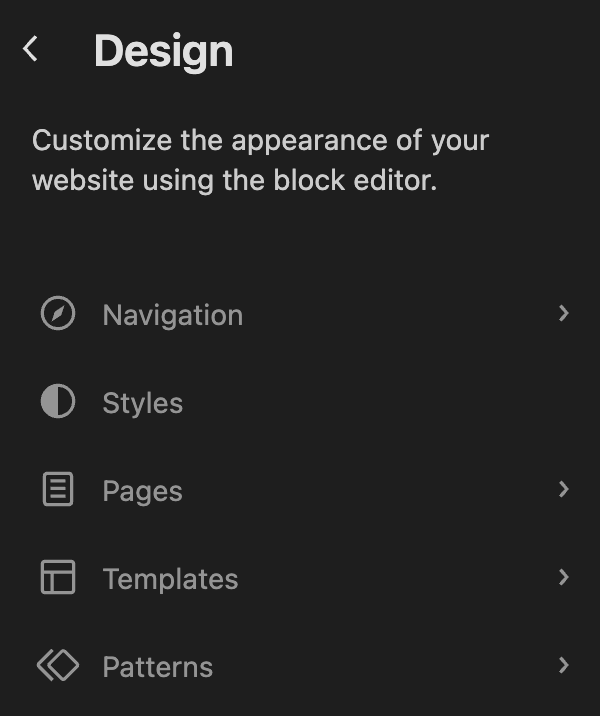
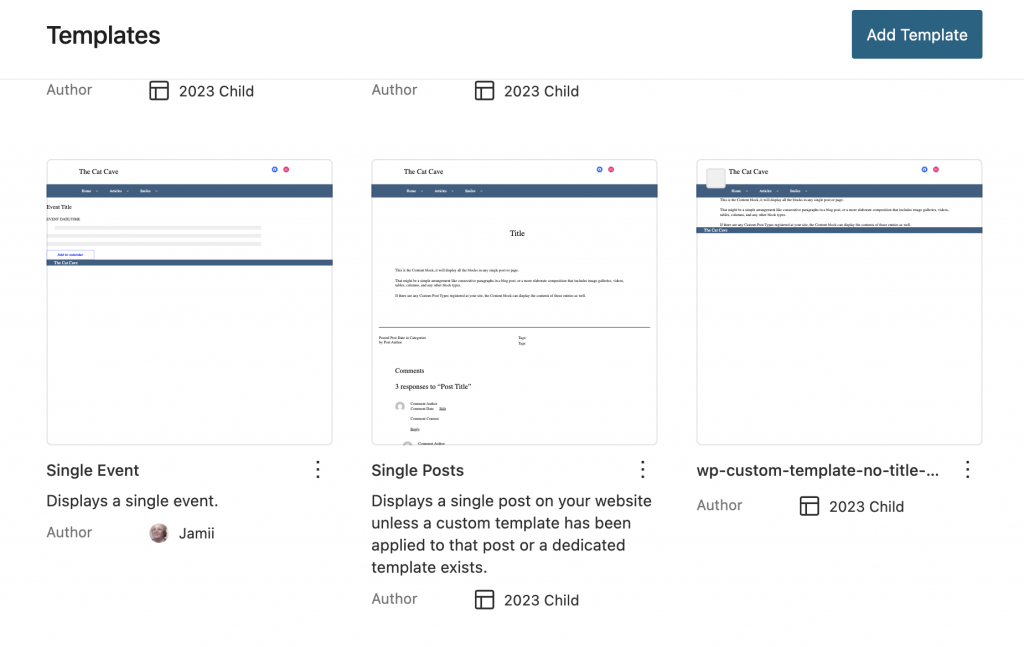
Above you’ll see the block theme Design page. On this page the styles option is where you’ll find many of the things you’d see in the customizer for a classic theme. The Templates item will give you access to all the Post templates in your block theme allowing you to edit them, or create new ones. The other picture above shows several templates from a block theme.
Patterns contain two areas; a section of templates parts, like Headers, Footers, and other common collections of blocks you’ll use to build a template and ‘patterns’, a collection of blocks that may be helpful in building a single page. The template parts allow you to have common headers so you don’t have to make changes to a header in multiple place. This also allows you to have a template with a special header unlike others in the theme. You can learn more about block themes and the full site editor at Learn.wordpress.org. There are articles and classes available for free access.
The DIVI theme builder
DIVI is a well established page builder with its own ecosystem of add-on plugins and pre-built theme layouts. A few years ago the folks at Elegant Themes (DIVI’s creator), realized that changing the header or footer with DIVI wasn’t an easy task. (It followed the procedure of a classic theme). They decided it would be nicer if you could build your header, and footer using the DIVI builder tools, so they added the DIVI theme builder. It works a lot like the FSE in providing templates, and template parts (for header and footer). To access the templates in a DIVI site, go to DIVI –> Theme Builder.
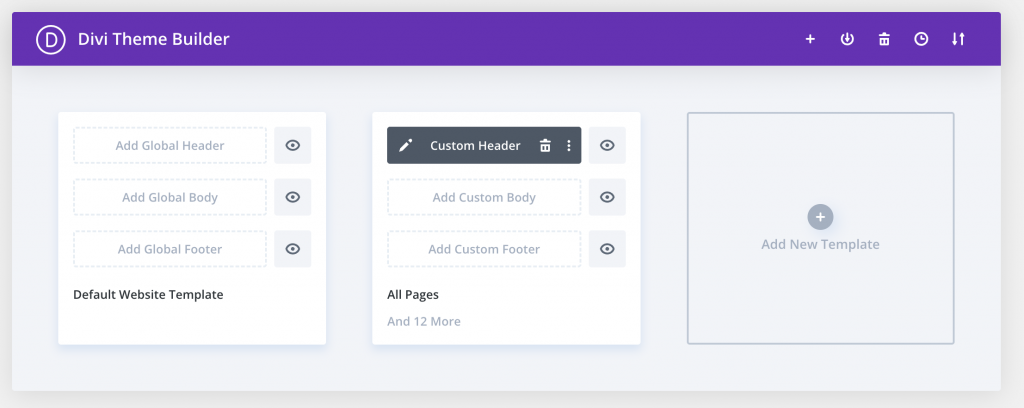
This is an example of a site using the standard DIVI header and footer for posts, but adding a custom header for All Pages. The template parts that you can access with DIVI are Headers and Footers. You can create a header or footer of your own design by adding a “Global Header” or a “Global Footer”. These will override DIVI’s normal header/footer design for all pages/posts, etc.
You can add templates that apply to post types, like Pages, and all pages will use that particular design, or you can create a template and assign it to particular pages or posts.
Elegant themes has a comprehensive article and video on using this tool that will have you understand all the uses for this tool.
The Elementor theme builder
Elementor is another common page builder with many third party add-ons and a large following. They had the same epiphany about header and footer building as DIVI a few years ago and have a similar solution to the problem.
Finding the Elementor theme builder is a little less intuitive than FSE or DIVI. First go to a page you’ve created with Elementor, or create a new page and enter the Elementor page builder. Click on the Elementor Logo in the upper left-hand corner, you’ll see a dropdown menu with a Theme Builder item. Selecting this will take you into the Elementor theme builder. Elementor will allow you to edit templates for Pages, Posts, 404 page, and your header and footer elements. It is recommended that you use an elementor theme, like Hello when working with the Elementor theme builder.
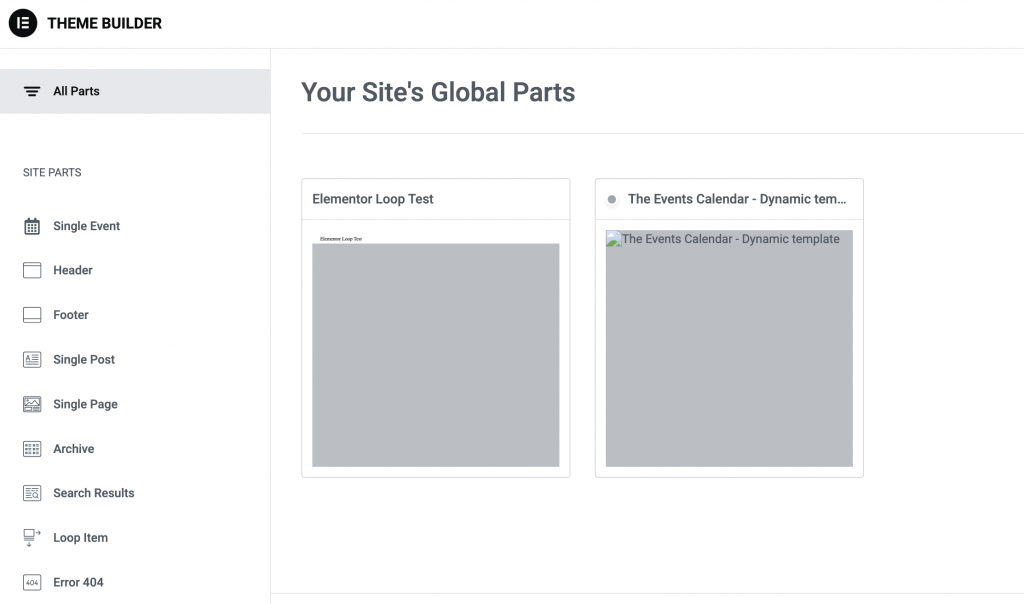
Elementor has a pretty good short video for getting started with the theme builder.